FloorPlanTo3D / FIELD NOTES
How to prepare a floor plan image for 3D conversion
Choose, crop and check your floor plan image so walls, doors and dimensions are easier to review after conversion.
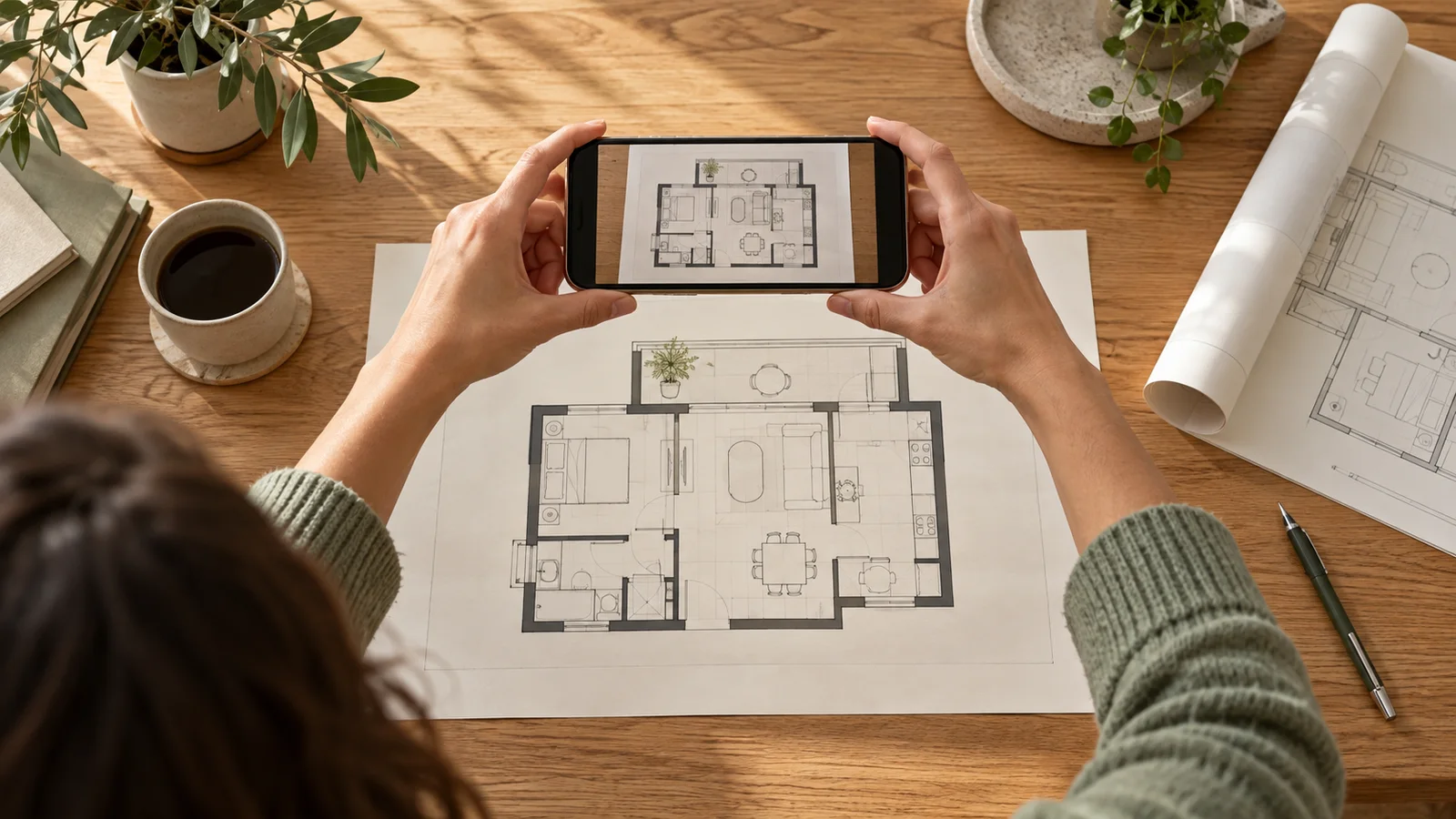
A better source saves more work than a heavier cleanup
The preparation goal is to preserve the information that explains the building: continuous wall lines, readable openings and trustworthy dimensions. A dramatic high-contrast image is not necessarily a better plan. If a filter closes a narrow doorway or removes a thin window line, it has made the drawing less useful even though the page looks cleaner. Start with the best source you can obtain and make conservative changes.
Keep the original unchanged. Create a separate upload copy and record any edits you make to it. This gives you a reference when a converted wall looks suspicious: you can determine whether the detail was absent in the original, removed during preparation or interpreted incorrectly during conversion. Without that comparison, repeated cleanup can gradually turn a real drawing into an invented one.
1. Prefer a direct export over a repeated screenshot
If the plan comes from a digital document, export the relevant page or drawing directly. Repeated screenshots and messaging-app downloads may reduce detail or introduce compression around thin lines. When only a paper plan is available, flatten the sheet and use a scanner or photograph it with the camera approximately parallel to the paper. Use even illumination so folds and shadows do not resemble extra walls.
FloorPlanTo3D accepts JPG, PNG and WebP images up to 8 MB. Convert a PDF page into one of those image formats before uploading; the PDF itself is not the current input format. Use the clearest version that fits the limit. Increasing a small image to a larger pixel count does not restore missing wall details, so ask for a better original when linework is already merged or unreadable.
Related documentation: Planner 5D Help — How to Upload a Floor Plan
2. Include one complete floor and the right apartment
A sheet may contain several floors, a site plan, a building elevation and a small key plan. Select the drawing that actually shows the space you want to edit. If several apartments share the same sheet, identify the correct one before cropping. Confirm whether the plan is mirrored or shows an optional configuration; the apartment number and revision note can matter more than the visual similarity of the rooms.
Crop out unrelated drawings, borders and advertising while leaving a little margin around the full exterior boundary. Do not cut through projecting bays, balconies you need to understand, or dimensions used for calibration. Keep the uncropped original for reference even when some of its notes are unnecessary in the upload copy. A tight crop should reduce ambiguity without deleting context needed later.
3. Straighten the page without changing its proportions
Rotation and perspective are different problems. A flat scan rotated a few degrees can be straightened without changing the relative lengths of walls. A photograph taken from one side may make a rectangular page appear trapezoidal; rotating that photograph will not remove the distortion. Use an appropriate document-perspective correction tool or recapture the page square-on, then verify the corrected result.
Check a known horizontal and vertical dimension after any transformation. Do not force the drawing into a square or a convenient banner shape. A floor plan should retain its original aspect ratio unless you are correcting a documented distortion. If two equally dimensioned spaces look increasingly different across the sheet, stop and inspect the source rather than trying to fix the problem by adjusting individual model walls.
4. Preserve small details that carry architectural meaning
Door arcs, short wall returns, window openings and narrow service spaces may occupy very few pixels. Zoom in on these areas before applying sharpening or contrast adjustments. A doorway should still read as an opening; two close wall edges should not merge into one solid block. Clear black-and-white linework is useful, but converting every gray region to black can erase information inside thick or shaded walls.
Do not redraw uncertain details just to make an image easier to recognise. If a furniture outline overlaps a wall, keep the original available and mark the location for review. A line may belong to a cabinet rather than a partition. Where preparation cannot resolve that ambiguity, the correct next step is a question or a manual review, not a confident-looking invented connection.
5. Keep useful labels and remove unrelated personal information
Room names and dimensions provide context for checking the result. Removing all text can make a plan less informative, especially when the difference between a storage room and a service shaft is not obvious from shape alone. Keep labels that do not obscure the geometry and preserve the full annotated version separately when a cleaner upload copy is needed.
Remove unrelated names, contact details or other personal information from the upload copy where appropriate, without erasing necessary geometry. FloorPlanTo3D uploads and processes the image to create the layout; preparing a local copy is not the same as a guarantee that recognition remains on your device. Check the visible file before submitting it, including page headers and small notes around the margins.
6. Perform a practical quality check before uploading
Inspect the image at normal size and then zoom in. At normal size, you should be able to distinguish rooms and trace the outside boundary. At closer range, look at the smallest doorway, a wall intersection and a dimension label. If these details are ambiguous to you, expect to spend time reviewing them after conversion. A larger file is helpful only when it contains clearer information.
Use a quick comparison log for a difficult source. Save a direct export and, if necessary, one carefully corrected version. Record what changed: rotation, crop or perspective correction. Compare the resulting structure at the same locations. Changing five filters at once makes it difficult to learn which preparation step helped, and repeated exports may introduce new artifacts while hiding the original problem.
| Symptom | Check first | Useful response |
|---|---|---|
| Trapezoidal page | Camera angle | Recapture or correct perspective. |
| Missing small room | Clipping or covered boundary | Inspect the original before editing. |
| Two edges merge | Compression or heavy thresholding | Use a clearer source. |
| All rooms too small | Units and calibration endpoints | Check scale rather than sharpening. |
7. Diagnose the result before retrying the image
Suppose the outer rooms look correct but a narrow storage room disappears. First examine whether the storage boundary is visible in the source and whether a label covers its doorway. If the evidence is clear, correct that location in the review workspace. If the boundary is clipped or blurred, return to the source. Re-uploading the same ambiguous image does not supply the missing information.
Use the same distinction for a missing window, a doubled wall or a room that appears too narrow. Is the problem in the source, the scale or the interpretation? Solve that layer first. A clean input reduces avoidable work, but it does not remove the need to check wall connections, openings and measurements before arranging furniture or relying on the 3D view.
Common questions
Should I remove furniture from the source image?
Not automatically. Remove only clearly unrelated decoration when you can preserve the drawing. Keep a complete original and review any locations where furniture outlines overlap structural lines.
Can I upload a PDF directly?
The current FloorPlanTo3D upload accepts JPG, PNG and WebP up to 8 MB. Export the relevant PDF page to a supported image format first, preserving proportions and readable linework.
Is a larger file always better?
No. A large file can still be blurry, distorted or a scaled-up thumbnail. Look for identifiable wall edges, openings and dimensions rather than file size alone.
Put your next idea into your floor plan.
Start with your drawing, or explore the sample to try editing and a 3D walkthrough.
Convert your floor plan →