FloorPlanTo3D / FIELD NOTES
How to convert a floor plan into an editable 3D home
A practical workflow for checking walls, setting scale and exploring a floor plan in 3D before you make layout decisions.
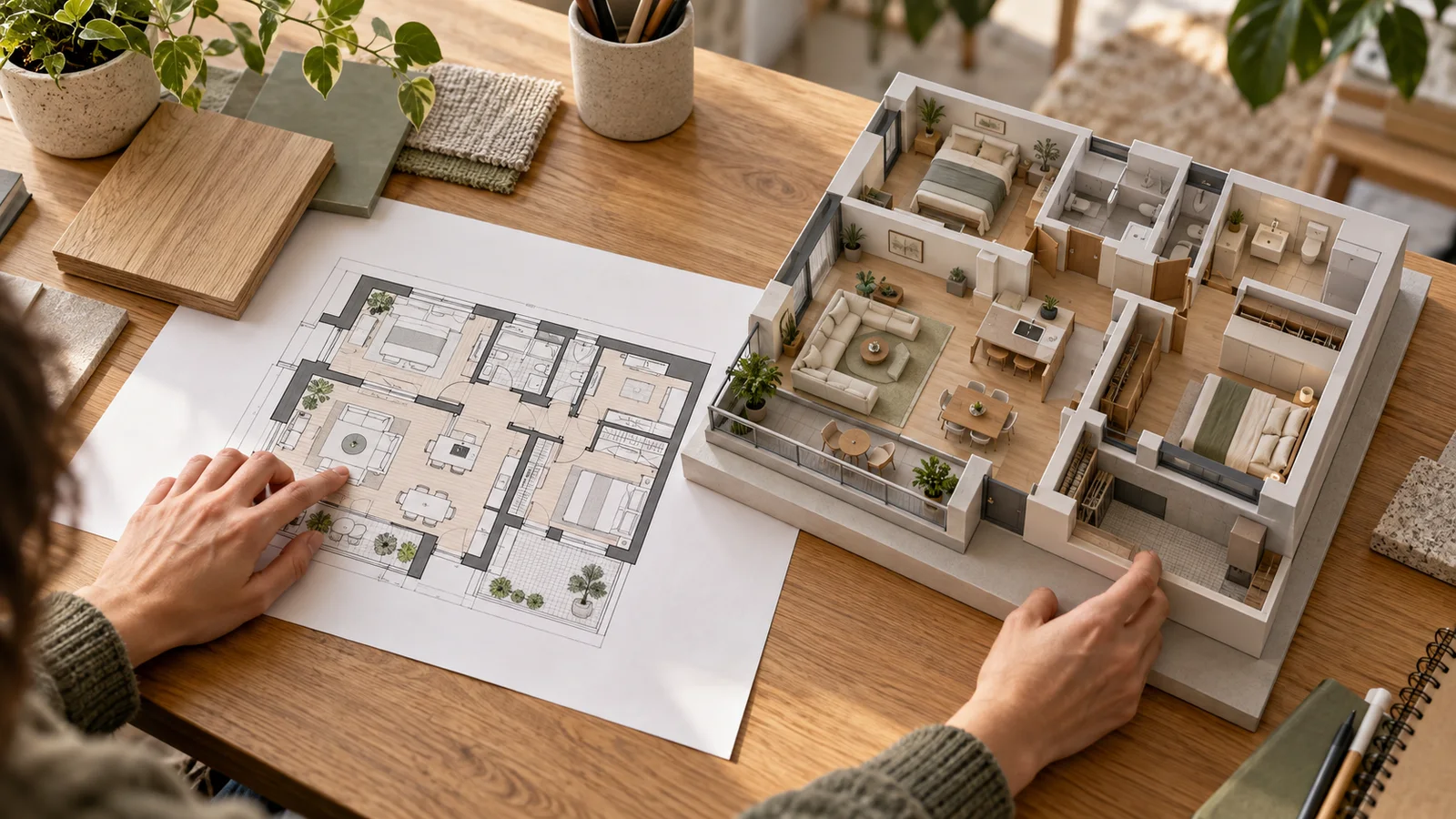
What an editable conversion should give you
A useful floor plan conversion gives you spatial information you can inspect and change: room boundaries, wall positions, door and window openings, and furniture placed in a consistent coordinate system. A picture that resembles a furnished apartment may communicate an idea, but it does not necessarily contain selectable walls or measurable objects. Before choosing a workflow, decide whether you need a presentation image or a layout you can keep working on.
For home planning, begin with the editable layout. You can then test questions that a single image cannot answer reliably: whether a door interrupts a cabinet, how two rooms connect, or what changes when you rotate a sofa. The model is still an interpretation of the source drawing. Its usefulness depends on the checks you perform before treating its dimensions as evidence.
1. Choose the right drawing and keep its context
Use the clearest plan available for the correct property, floor and revision. A sales brochure may show optional partitions or a mirrored apartment, so check its notes before importing it. Keep an untouched copy containing the title, dimensions and any legend. Make a separate working copy cropped to one complete floor, including the exterior boundary and any recesses you intend to model.
FloorPlanTo3D accepts JPG, PNG and WebP images up to 8 MB. If your original is a PDF, export the relevant page to an image first. A photograph of a room or an elevation drawing is not a substitute for a top-down plan: it shows different information. Remove unrelated page decoration, but keep the door arcs, window lines and dimensions needed to interpret the layout.
2. Establish scale before making furniture decisions
Choose a known length whose endpoints are unambiguous. An internal room width should be measured between the same finished wall faces shown by the dimension. An outside building dimension belongs to outside endpoints. Mixing the two can introduce the thickness of one or more walls into your calibration, even when the entered number is correct.
In the review workspace, use the known measurement to establish scale, then check a second length elsewhere. Prefer a measurement in the other direction, because an image stretched horizontally can pass one check and fail the other. Do not assume a door or a bed symbol has a standard size. If you have no trustworthy dimension, use the model for broad relationships and obtain a measurement before judging fit.
Related documentation: SketchUp Help — Scaling Your Model
3. Review the structure in a fixed order
Start at the outer boundary and move clockwise. Check corners, recesses and columns before reviewing internal partitions. Then inspect every junction: two lines that almost meet can describe a different room boundary from two connected walls. A heavy line on a drawing may represent a wall, a cabinet or a graphic boundary; use the legend and surrounding geometry to decide.
Next compare the number of rooms and their connections with the source. Look particularly at narrow corridors, small storage rooms and places where dimension text crosses wall lines. Correct the structure while the original remains visible. Changing a wall in a planning model is a way to explore an idea, not evidence that the physical wall can be removed. Questions about structure and services require separate project information.
| Review layer | Question | Next action |
|---|---|---|
| Boundary | Are all corners and recesses present? | Compare with the untouched source. |
| Connections | Do rooms connect through the correct openings? | Inspect every junction and door. |
| Scale | Does a second known length agree? | Investigate discrepancies before furnishing. |
| Furniture | Are actual sizes and use states represented? | Check specifications and local gaps. |
4. Check openings as working objects
A doorway is more than a gap in a wall. Check its position, width, hinge side and opening direction against the plan. An incorrect swing can make a furniture arrangement appear workable until the door is used. Inspect window locations too, and note any unknown sill heights rather than letting a default appearance become an assumed measurement.
Review awkward pairs together: a bedroom door beside a wardrobe, two doors sharing a corner, or a balcony opening behind a dining chair. Furniture can conceal an opening in a 3D view, so use the plan view to verify it first. Where the drawing is ambiguous, record a specific question such as “does this door slide or swing?” instead of silently choosing the most convenient answer.
Related documentation: IKEA — How to measure and photograph your room
5. Furnish with dimensions, then inspect in 3D
Place the largest and least flexible items first: a bed, sofa, dining table or desk. Use their actual overall dimensions, including projecting arms or frames, when comparing fit. A library object is a useful stand-in, but its proportions are not proof that a particular product will fit. Keep a small inventory of the furniture you intend to retain and compare each item with the model.
Consider a room that is 3.40 m wide. A sofa projecting 0.90 m from one wall and storage projecting 0.35 m from the opposite wall leave a 2.15 m strip between them. That strip must still accommodate a table, the gap used to reach seating, and circulation. This is a dimensional budget, not a recommended clearance. Test the actual arrangement and measure its narrowest point rather than relying on the empty room width.
6. Walk a realistic route and revise one issue at a time
Switch from the overview to a room-level walkthrough. Follow an ordinary sequence: enter the home, put down a bag, reach the living space, go to the bedroom and return. Stop at doorways and furniture corners. The purpose is to identify questions worth measuring, not simply to make an attractive tour. A camera passing through a space does not establish that a person carrying laundry or using a mobility aid can use it comfortably.
Record the location, observed problem and proposed change for each issue. For example, “bedroom entrance: cabinet overlaps the door swing; shorten the cabinet or move it to the opposite wall.” Return to the editable plan, change one variable, and repeat the same route. Comparing the same task before and after a change is more informative than changing furniture, materials and camera position simultaneously.
7. Finish with a reviewable planning package
Keep the source drawing, the reference measurement and a short list of unresolved assumptions alongside your preferred layout. Use an available 2D export or device screenshots to communicate it, and label alternatives clearly. Include the questions that remain open, such as a radiator position or an uncertain opening, so the next person understands where the model is reliable and where it is provisional.
FloorPlanTo3D connects floor plan recognition, layout editing, furniture arrangement, 3D modeling and walkthroughs with photorealistic interior views and a design report. Select a viewpoint in the model, generate a design view, and compare it against the reviewed geometry. Keep the scale, openings and furniture relationships traceable throughout the workflow.
Common questions
Can I convert a plan without dimensions?
You can explore its broad layout, but you need a reliable reference length before using it to judge furniture fit. Do not infer an exact scale from a familiar-looking door or bed symbol.
Does a 3D view prove that recognition is correct?
No. Inspect room boundaries and openings against the source in 2D, and validate independent measurements. The 3D view can make some problems easier to notice, but it can also hide geometry behind furniture or walls.
Can I generate a photorealistic design and report now?
Choose a viewpoint during the 3D walkthrough to generate a photorealistic interior view from the model. Bring the chosen views and design direction together in a design report, keeping the reviewed floor plan as the spatial reference.
Put your next idea into your floor plan.
Start with your drawing, or explore the sample to try editing and a 3D walkthrough.
Convert your floor plan →