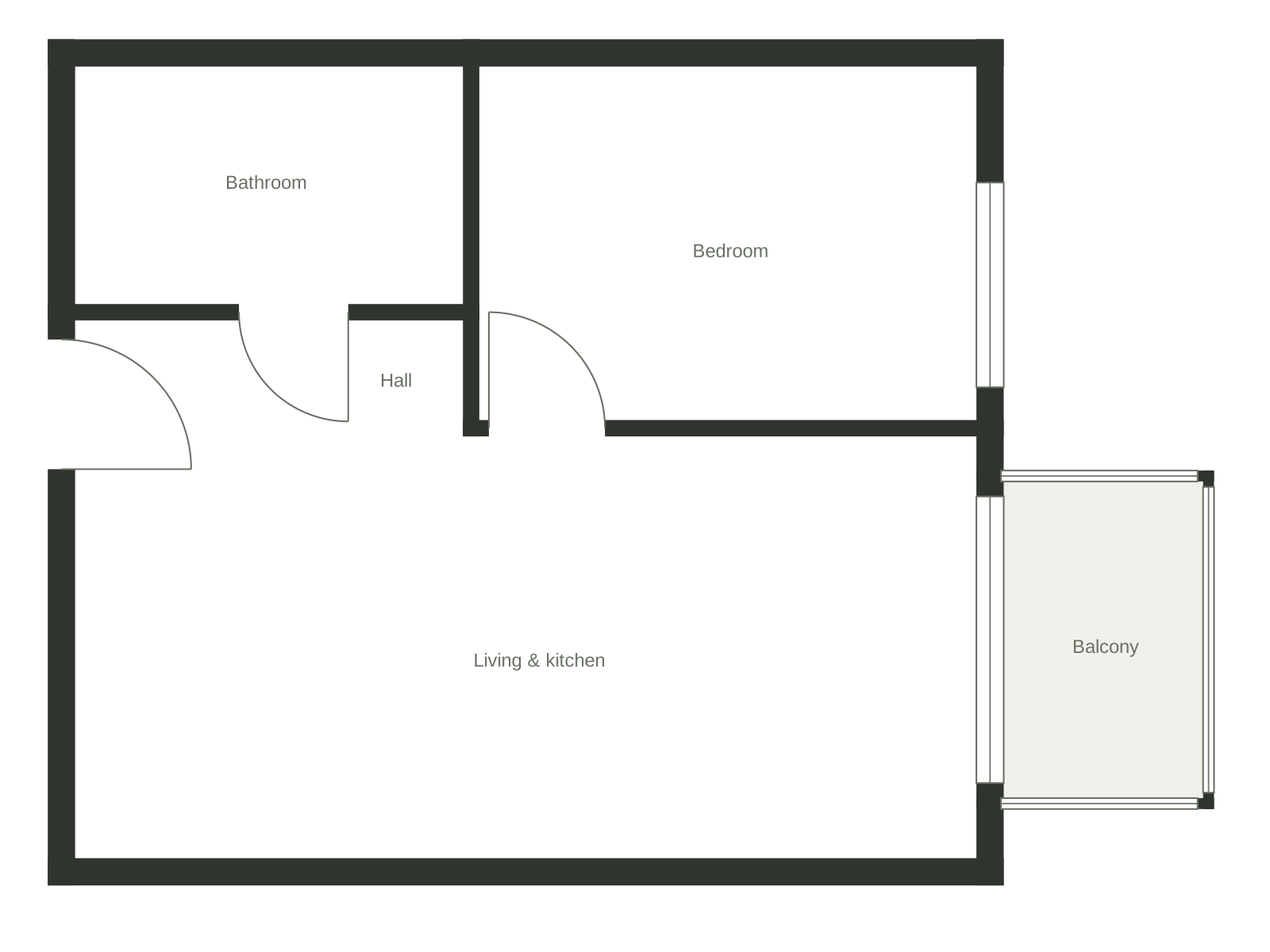
Upload your floor plan
Upload a clear JPG, PNG or WebP floor plan to recognize walls, doors and rooms. Start from a digital plan, scan or straight-on photo.
FLOOR PLAN TO 3D
Edit the layout. Place your furniture. Walk through your home.
A clear image works best
FROM FLOOR PLAN TO INTERIOR DESIGN
Upload a clear JPG, PNG or WebP floor plan to recognize walls, doors and rooms. Start from a digital plan, scan or straight-on photo.
Set the scale with one known measurement. Adjust walls, doors and windows against your original image before opening the editor.
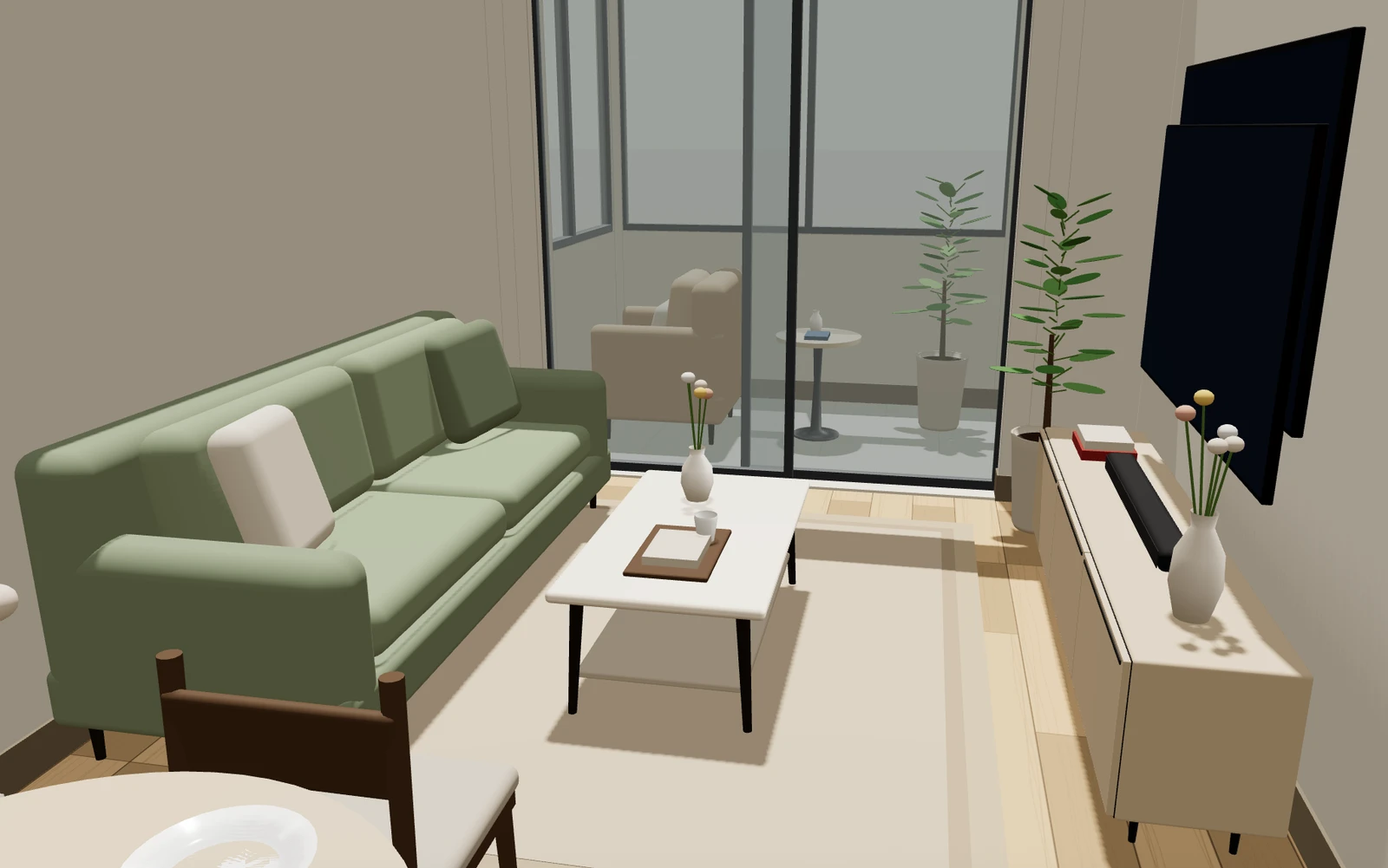
Arrange furniture, explore the 3D model and walk through each room. Turn selected viewpoints into photorealistic interiors and a design report.
ONE LAYOUT. MORE WAYS TO SEE IT.
One home, from the floor plan to the view inside. Explore it in the editor.
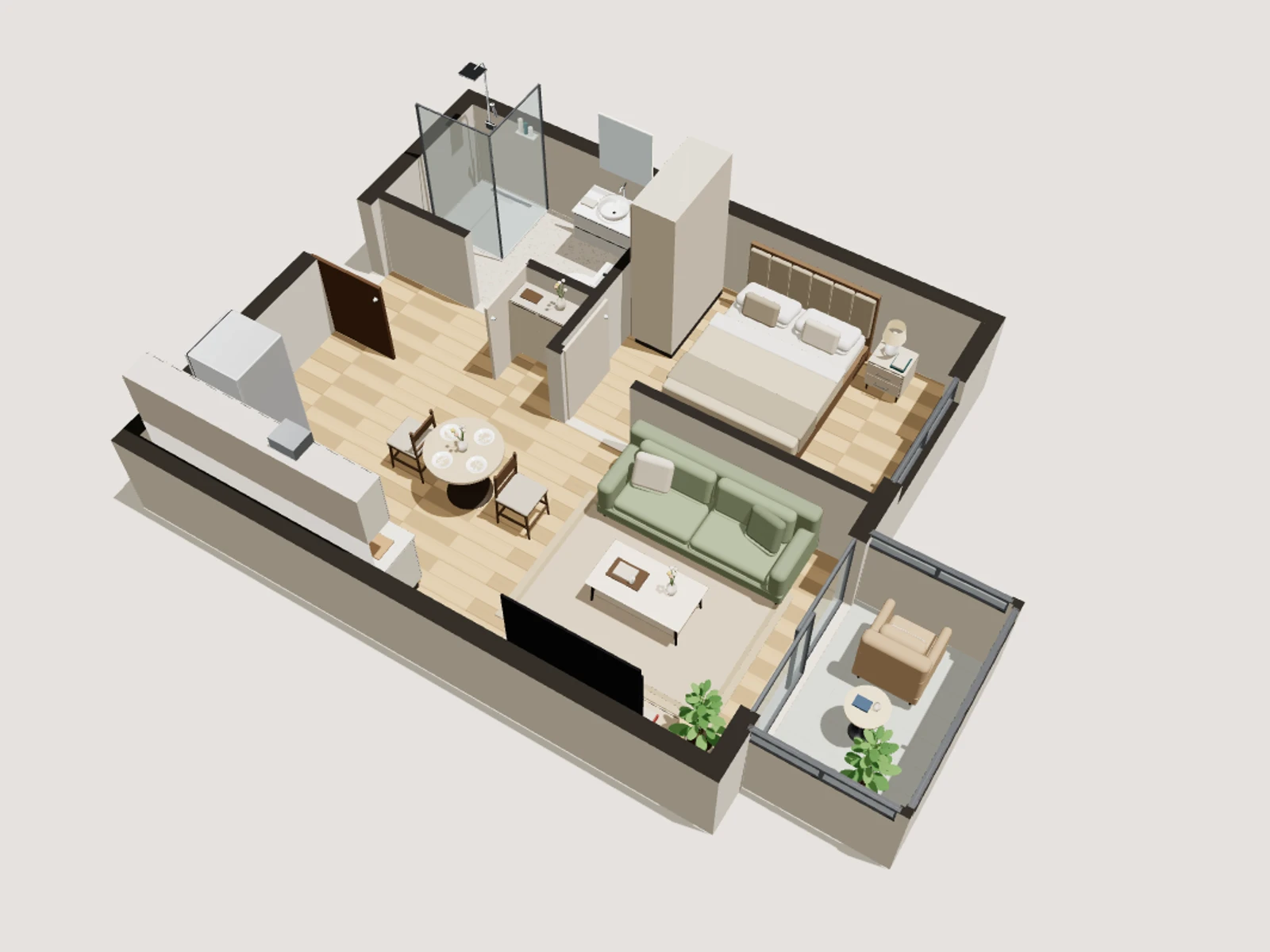
02 / 3D overview
See how the rooms connect and furniture sits in the space.
One-bedroom sample · Ready to edit.
BEFORE YOU MOVE. BEFORE YOU RENOVATE.
Arrange furniture in the 2D editor, then see the same placement in 3D.
Follow the route from the entrance and check the relationship between adjoining rooms.
Compare the source drawing, check openings and set a known measurement before planning.
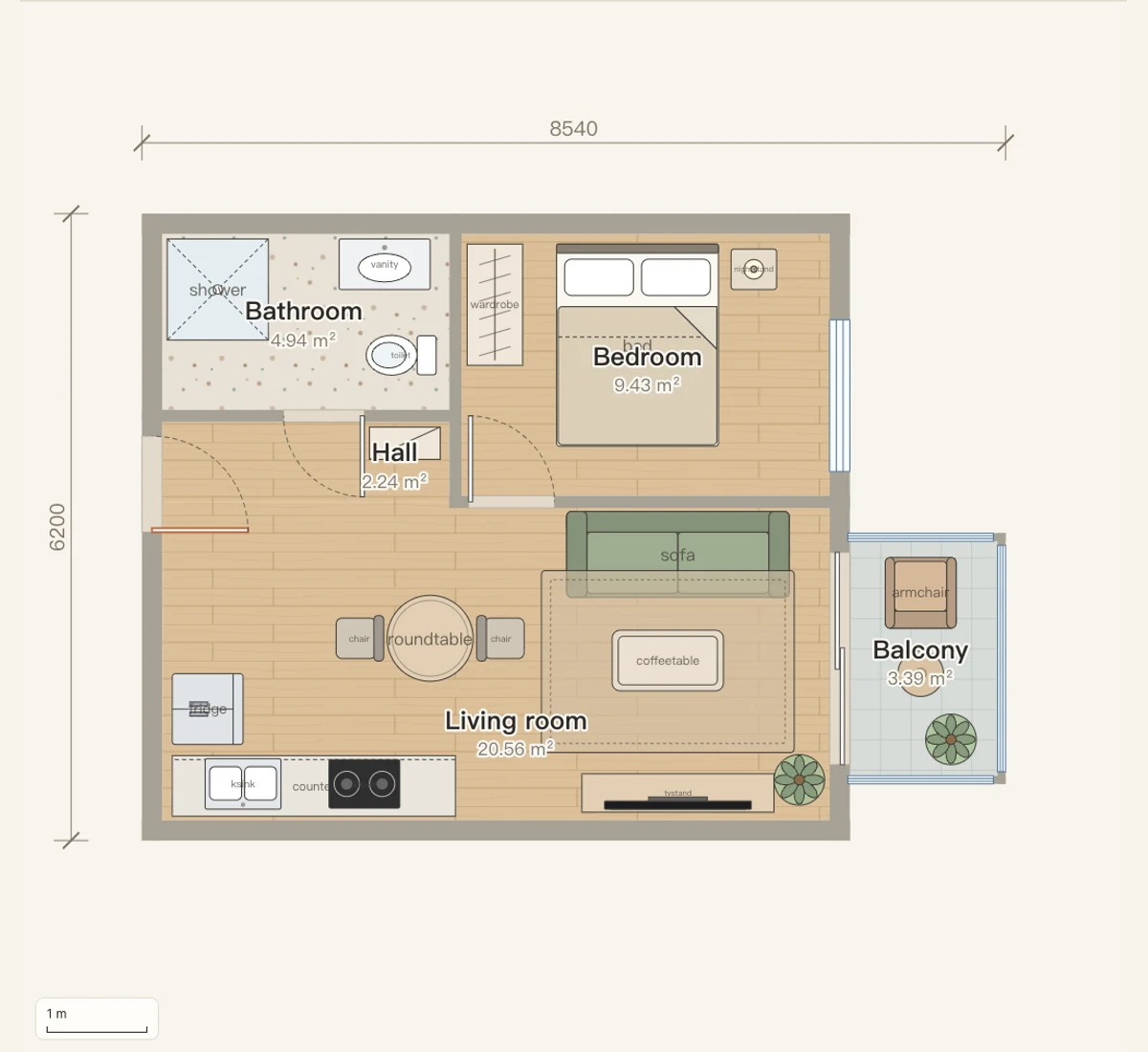 Floor plan editor · 2D + 3D
A FLOOR PLAN YOU CAN WORK WITH
Conversion is the beginning. Review the structure, make your changes and take another look in 3D.
MADE FOR REAL PLANNING QUESTIONS
Try your furniture arrangement before moving day. Check the measurements that matter before you buy.
Start with my plan →Explore a layout idea and inspect the route between rooms before discussing the changes.
Start with my plan →Use a 2D export and the 3D view to make a layout easier to discuss with family or a designer.
Start with my plan →FROM FLOOR PLAN TO DESIGN
Choose your viewpoint during a 3D walkthrough. Turn the model into photorealistic interior designs, then bring your chosen views together in a design report.
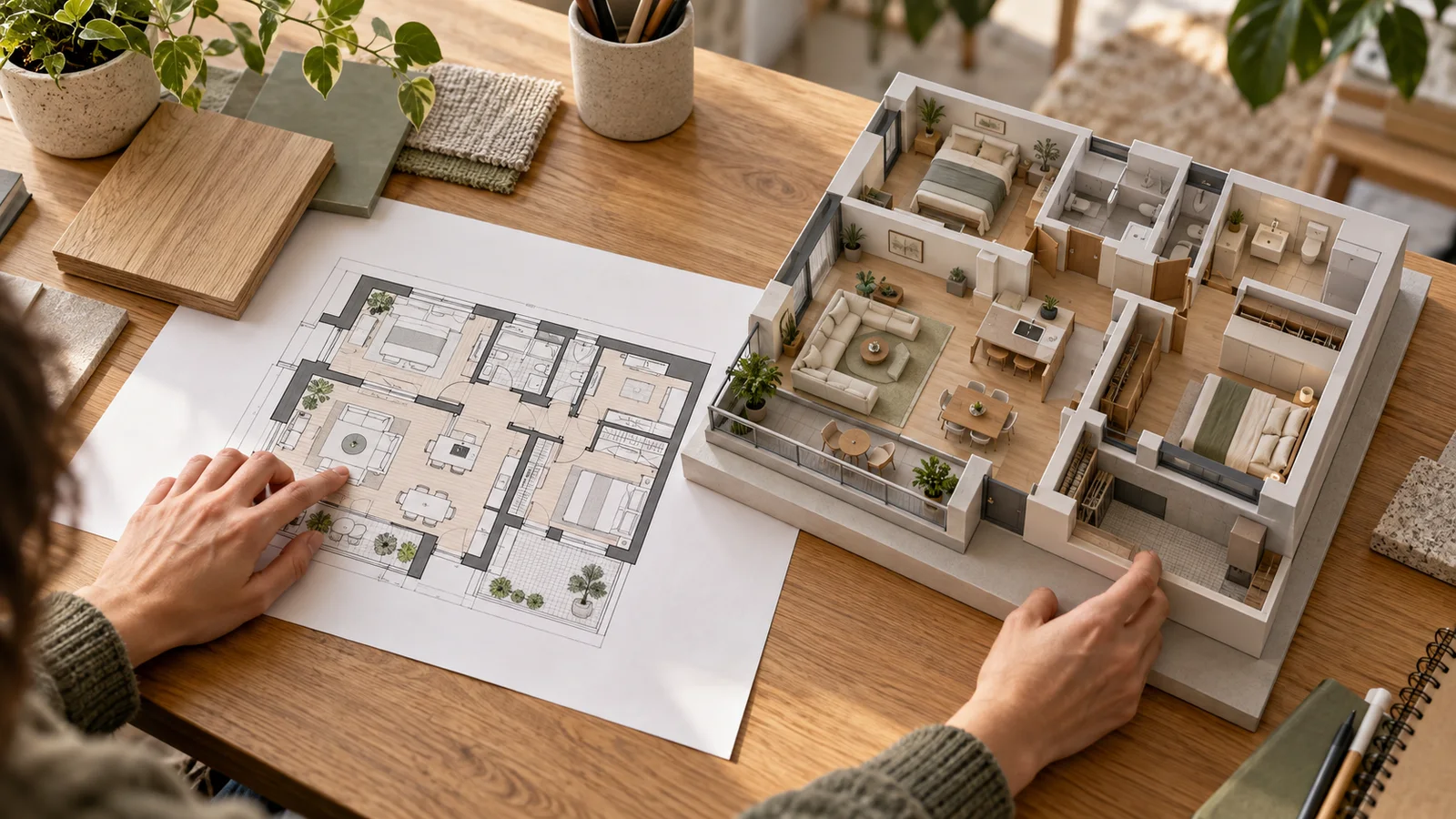
A practical workflow for checking walls, setting scale and exploring a floor plan in 3D before you make layout decisions.
Read guide →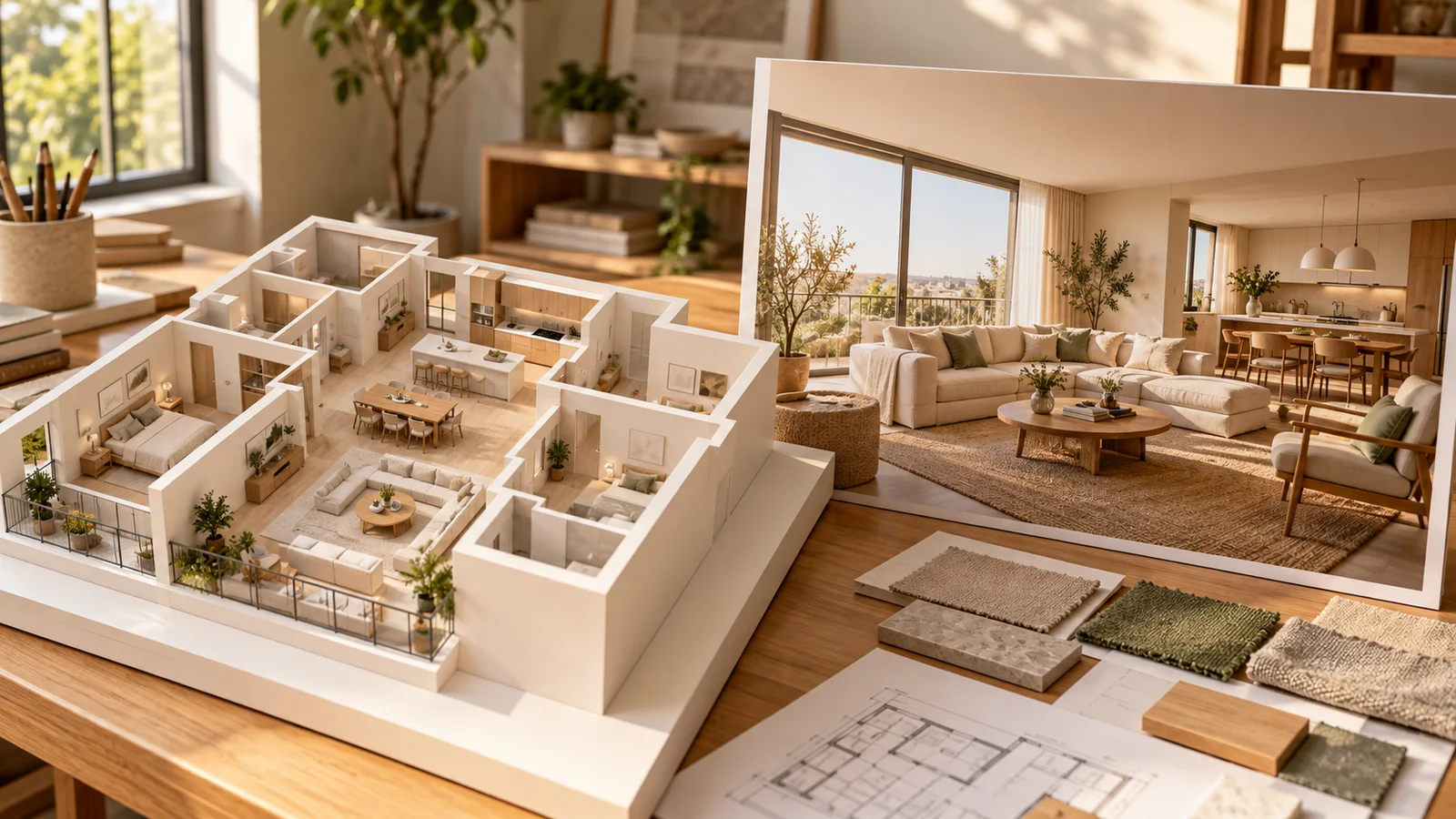
Understand the difference between an editable floor plan, a navigable 3D model and an interior render before choosing a conversion tool.
Read guide →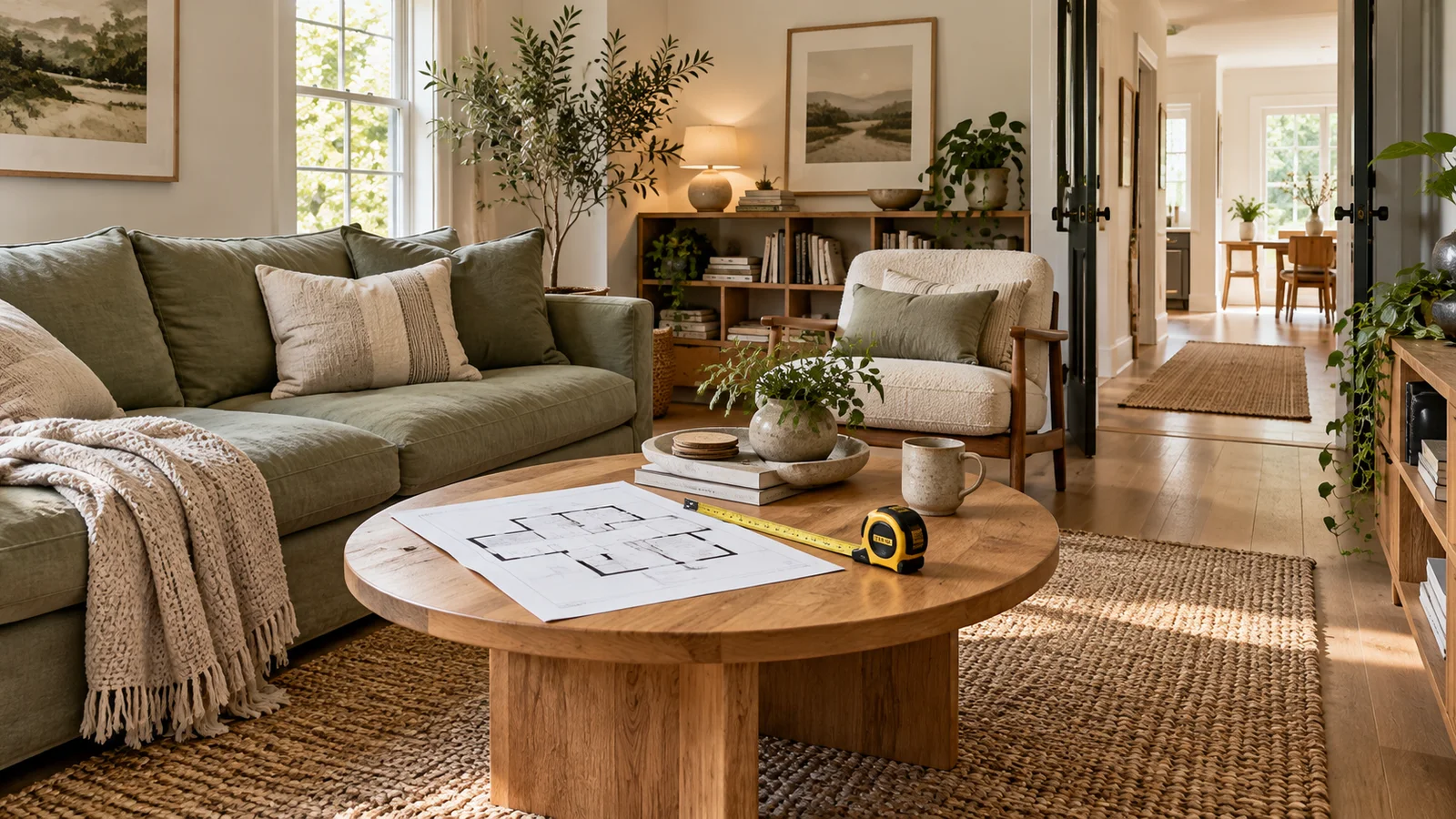
A practical furniture-planning workflow: calibrate the room, use real product dimensions and check movement in both 2D and 3D.
Read guide →FLOORPLANTO3D / FAQ
Upload a floor plan image, review the suggested walls and openings, and calibrate a known measurement. Then open the editor to see the same layout in 2D and 3D and explore a room walkthrough.
Yes. FloorPlanTo3D creates a layout with editable walls, doors and windows in the review workspace. After checking it, you can arrange furniture and explore the home in the 2D and 3D editor.
Upload a JPG, PNG or WebP image up to 8 MB. For a PDF, export the relevant floor plan page as an image first. Clear walls, visible openings and one known measurement help you refine the result.
You can try a clear, straight-on photo or scan. Results depend on the drawing. Review every wall and opening and calibrate a known length before relying on the layout.
The Design report brings your chosen viewpoints and interior design direction together. Select a perspective during the 3D walkthrough and use the model to create a photorealistic view of the space.
The editor keeps your latest design in this browser; there is no cloud project library or cross-device sync. Keep an exported image for sharing, and do not use the model as a construction or surveying document.
Recognize your floor plan, edit the layout and explore it in 3D. Bring your chosen views to life with interior renders and a design report.
Convert my floor plan →