FloorPlanTo3D / FIELD NOTES
3D floor plan vs. render: which output do you need?
Understand the difference between an editable floor plan, a navigable 3D model and an interior render before choosing a conversion tool.
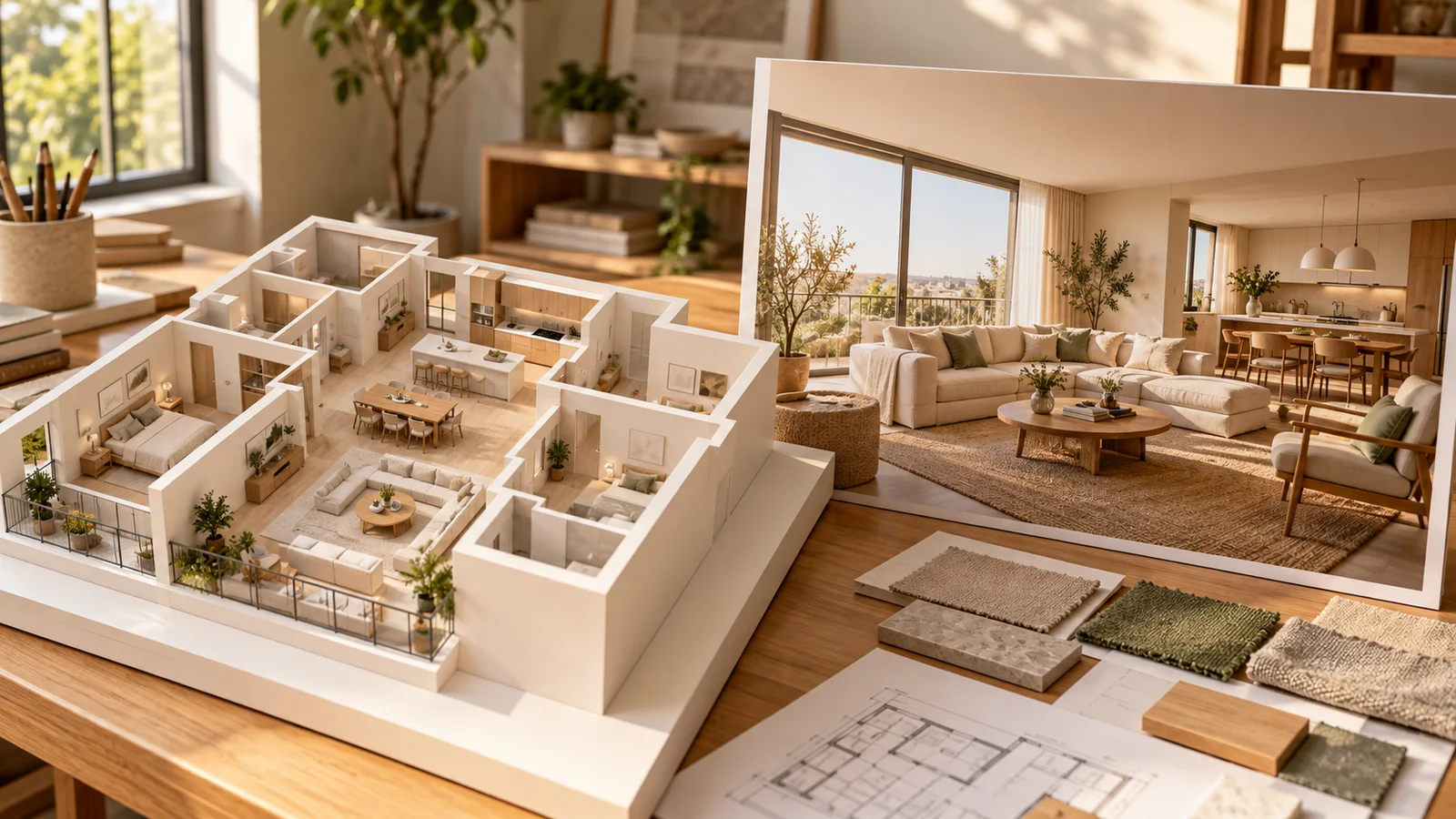
Start with the decision, not the label “3D”
Search results use “3D floor plan” for several different deliverables: an editable model, an isometric picture of an apartment, a rendered room image and an interactive walkthrough. They can all be useful, but they answer different questions. If you want to move a wall or compare furniture positions, you need access to the underlying layout. If you want to discuss colour and atmosphere, an image may be the more convenient output.
Ask what remains editable after generation. Can you select a door, change a furniture position and inspect the result from a different angle? Or can you only download another image? Neither deliverable is automatically better for every purpose. The mistake is treating evidence of visual realism as evidence of geometric accuracy, or assuming that a simplified model cannot support useful planning decisions.
What a model stores and what a picture shows
An editable model represents objects and their relationships in space. Depending on the application, those objects may include walls, room boundaries, openings and furniture with dimensions and positions. A view of that model is generated from a particular camera. Changing the viewpoint can reveal surfaces that were hidden in the previous view because the underlying scene exists beyond the picture frame.
A finished image stores visible appearance at a particular resolution. Even when it was rendered from a detailed model, the delivered image alone does not contain the original editable wall objects. It may show a convincing doorway without telling you its width. Keep the distinction between the source scene and its image: a renderer can produce a picture from geometry, but receiving the picture does not mean you also receive that geometry.
A render can be geometry-based or image-generated
Traditional scene rendering uses geometry, materials, lighting and a camera to produce an image. An image-to-image design workflow may instead create a new visual interpretation from a reference picture and instructions. Both can produce attractive interiors. The important question for a planning task is which parts of the result are constrained by a reviewed model and which are inferred or creatively changed.
For example, a reference view may contain one window and a low storage unit. A styled interpretation could introduce taller storage, change the window proportions or make the room appear deeper. Those changes may be appealing as ideas, but they need to be checked against the actual layout. Treat a generated design image as a proposal to evaluate, not a measurement sheet or proof that every visible element exists in the model.
Related documentation: Blender Education — Introduction to 3D
Compare outputs using a simple acceptance test
Choose a small set of structural anchors: the number and positions of openings, the junction between two walls, and the location of a fixed column or recess. Compare these first. Then compare large furniture footprints and the route through the room. If a result changes one of those anchors, record whether the change was intentional. A beautiful image with an accidental new doorway should not silently become the approved plan.
Use the same camera position when comparing style options wherever the tools allow it. A different viewpoint can hide a conflict or exaggerate an improvement. Keep the image of the reviewed model beside the styled image and write down discrepancies. For actual fit decisions, return to the dimensions in the model and confirm critical measurements on site rather than estimating lengths from perspective.
Work through an example: a dining table near a doorway
Imagine a dining table positioned between the kitchen and a balcony door. In the editable plan, its footprint and the door swing overlap once a chair is pulled out. Moving the table or choosing a smaller one is a geometric decision. You can compare alternative positions, measure the remaining space and revisit the same route in a walkthrough before deciding which arrangement to develop.
A styled image can then help compare a round oak table with a darker rectangular option, or lighter upholstery with a more textured fabric. But if the image removes the chair nearest the door, the original problem has not been solved. Separate the decisions: confirm the layout and operational space first, then evaluate appearance while preserving the elements that made the layout workable.
Use each view for the task it handles well
Plan view is useful for comparing footprints, alignments and explicit dimensions. A 3D overview helps explain how rooms and objects relate. A room-level walkthrough helps identify sightline and circulation questions. A finished render helps communicate materials, colour relationships and a proposed mood. Switching between these views is often more productive than asking one polished picture to answer every question.
The model itself also has limits. Missing radiators, uncertain heights or simplified furniture can make an arrangement appear easier than it is. Render quality does not remove those gaps, and an editable model is not automatically a construction-ready BIM file. Keep a record of assumptions and unresolved details so that a collaborator can distinguish information taken from the drawing from information added for visualisation.
| Deliverable | Useful for | Does not establish by itself |
|---|---|---|
| Editable plan/model | Dimensions, layout changes, object positions | That the source matches the site |
| 3D overview/walkthrough | Spatial relationships and visual review | Human access or lighting performance |
| Rendered design image | Materials, colour and atmosphere | Editable geometry or measured fit |
From editable floor plan to interior design
FloorPlanTo3D supports floor plan recognition, layout editing, furniture arrangement, 3D modeling, walkthroughs, interior design views and design reports. Its core planning value is the ability to revisit the layout after conversion. The editorial cover of this guide illustrates the distinction between a model and a finished view; it is an AI-generated topic image, not a screenshot or a measured result from the application.
Choose a walkthrough perspective to generate a photorealistic interior view from the 3D model, then bring the selected views together in a design report. Compare the resulting visuals and written design direction against the reviewed layout, checking openings, furniture positions and circulation before making decisions.
Keep the handoff clear
A useful design discussion separates three things: the current layout, proposed changes and visual inspiration. Label each output accordingly, include the drawing revision and explain what still needs confirmation. If a collaborator receives only a beautiful room image, they may reasonably assume that its furniture, openings and materials are all approved when some were only suggestions.
The strongest deliverable is not necessarily the most realistic image. It is a set of consistent views that lets another person understand what was measured, what was changed and what is still being explored. Use editable geometry to manage spatial decisions and imagery to communicate appearance, with explicit checks wherever the two meet.
Common questions
Can a realistic image be measured like a plan?
Not reliably from appearance alone. Perspective changes apparent lengths, and generated imagery may change geometry. Use a calibrated plan or model, then verify the critical dimensions directly.
Does an editable model guarantee accurate dimensions?
No. Editability describes what you can change. Accuracy depends on the input, calibration and review. A model can remain editable while containing incorrect measurements.
Which output should I prepare first?
Start with the layout when your decision concerns fit or circulation. Once that is reviewed, use imagery to compare appearance while keeping the approved spatial constraints visible.
Put your next idea into your floor plan.
Start with your drawing, or explore the sample to try editing and a 3D walkthrough.
Convert your floor plan →