FloorPlanTo3D / FIELD NOTES
A 3D walkthrough checklist for your floor plan
Review entrances, furniture placement, sight lines and room connections with a repeatable walkthrough of your editable floor plan.
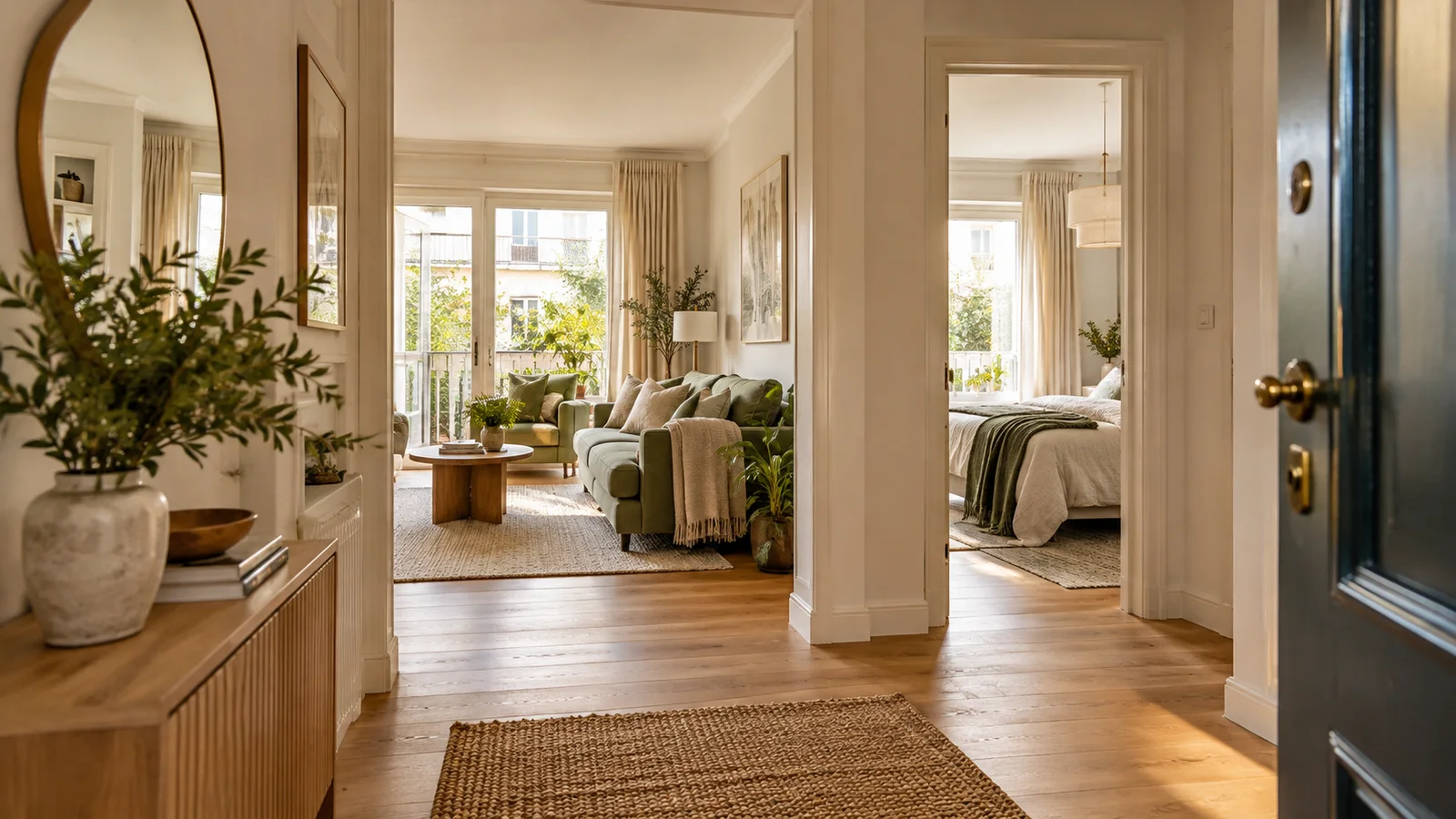
Use a walkthrough as a structured review
A 3D walkthrough is most useful when you enter it with questions. An unplanned tour can confirm that the apartment looks appealing while missing the everyday situations that make it difficult to use. Choose a route, a set of tasks and a way to record observations. Then repeat the same review after changes, so the comparison is based on consistent conditions rather than a more flattering camera angle.
Separate observation from conclusion. “The cabinet dominates the entrance view” is an observation you can discuss. “The cabinet is too large” requires dimensions, priorities and knowledge of the actual room. A walkthrough helps locate issues and explain them to another person, but it does not automatically verify access, lighting performance or construction feasibility.
1. Check the model before judging the experience
Start in plan view. Confirm the scale, room connections and the positions of the openings that define your route. Compare major furniture sizes with the actual pieces or intended products. If the model omits a radiator, low beam or cupboard projection, write that down. An incomplete model can produce a smooth-looking journey simply because the obstacle was never represented.
Pay particular attention to door direction and furniture that changes during use. A closed drawer, tucked-in chair or folded sofa bed does not show the space required for the activity. You may need to record an operational envelope separately when the object cannot be animated in the tool. Keep those notes available while touring so the visible state does not become the only state you assess.
2. Review familiar tasks rather than an arbitrary path
Begin with an arrival route: enter, set down a bag or coat, then move to the main living space. Follow with a daily route between sleeping, bathing and cooking spaces. Add a task that matters to your household, such as carrying laundry, helping a child, moving with an aid or reaching a frequently used cupboard. Different tasks expose different constraints even when they share the same corridor.
Pause at decision points instead of moving continuously. Stand at a doorway, inspect the next turn, then look back. Check whether another person could be using an adjacent space at the same time. In an open-plan room, observe whether a route crosses the active cooking or dining area. The aim is to understand the arrangement, not to perform a fast tour that conceals its awkward moments.
3. Keep camera conditions consistent
A room-level camera and a bird’s-eye view communicate different relationships. Start at a plausible standing viewpoint and avoid comparing a low, close view with a high, wide view as if they were equivalent. Camera position, field of view and viewing direction can strongly affect the apparent size of furniture and the amount of room visible. When a tool uses fixed defaults, keep them consistent during the comparison.
Do not interpret a generous-looking image as a measurement. A wide view can show more of a small room while exaggerating objects near the camera. If a sofa appears smaller after a camera change, inspect its dimensions before calling the layout improved. For alternate layouts, return to the same doorway or recognisable landmark and look in the same direction before deciding what changed.
Related documentation: SketchUp Help — Walking through a Model
4. Inspect openings, corners and local pinch points
Doorways and turns deserve more attention than the middle of an empty room. Look for a door opening across storage, an abrupt turn around a tall cabinet or a chair projecting into the narrowest part of a route. Return to the plan and measure the relevant gap. The review should produce a specific location and a specific question, not just an overall impression that the room feels tight.
Treat collision behaviour cautiously. A walkthrough camera may have a simplified collision shape, and some tools allow it to cross objects for convenience. Even if the camera cannot pass through a gap, that may reflect the tool’s navigation model rather than a complete human-access assessment. Use the walkthrough to find the issue, then verify the physical space and the needs of the people using it.
5. Look at sightlines and privacy without overclaiming
From the entry, note which parts of the home are immediately visible. From the sofa or desk, inspect the relationship to the doorway and windows. A tall piece of storage can interrupt a sightline without blocking the route on the floor. You may prefer that separation, or you may want a more open connection. Record the preference so the design discussion is about an intended outcome.
A bright viewport is not a daylight study. Unless a workflow explicitly models location, orientation, time and relevant surroundings, apparent sunlight should be treated as visual presentation. Similarly, the model does not tell you how sound travels between rooms or whether a surface will feel reflective in real use. Keep those questions separate from what the walkthrough can directly show.
6. Record issues in a way that leads to a decision
Use a compact log with five fields: location, task, observation, proposed change and verification needed. For example: “bedroom entry; carrying laundry; cabinet corners narrow the turn; move the cabinet to the far wall; check the resulting wardrobe access in plan and on site.” This creates an actionable comparison instead of a collection of screenshots without context.
For each proposed change, ask what it costs elsewhere in the room. Moving a cabinet may improve the doorway but cover an outlet or interfere with a window. Compare one change at a time and repeat the original task. If two options solve different problems, keep both with their tradeoffs rather than presenting one as universally better. A good review makes uncertainty easier to discuss, not less visible.
| Location and task | Observation | Next check |
|---|---|---|
| Bedroom entrance / carrying laundry | Cabinet interrupts the turn | Measure the gap and test an alternative. |
| Dining area / leaving the table | Pulled-out chair enters the route | Check the occupied arrangement. |
| Entry / looking into the home | Tall storage screens the living room | Decide whether separation is wanted. |
7. Capture a small, consistent set of reference views
Save device screenshots from a few recognisable positions: the main entrance, a key room doorway and the most constrained furniture area. Pair them with the corresponding plan view and an issue note. Include enough context to locate the camera. A close-up of a furniture corner may show the problem clearly but be difficult for someone else to place in the overall apartment.
Record whether the view represents the current condition or a proposal. If heights, materials or a furniture model are approximate, say so alongside the image. The purpose is to let another person reproduce the reasoning. A long set of unlabeled views is often harder to review than a small set that shows the same tasks, dimensions and decisions clearly.
8. Know when to leave the model
Finish by separating resolved layout changes from questions that require measurements, product information or a site visit. Recheck the chosen arrangement in 2D after the tour, especially if visual impressions led to moving furniture. Confirm that the change still respects door swings, operational space and the original scale. Keep the source plan and unresolved items with the preferred option.
In FloorPlanTo3D, a walkthrough connects layout editing and 3D modeling to interior design. Choose a viewpoint, generate a photorealistic design view from the model, and collect the selected views in a design report. Keep your review notes alongside the imagery so questions about dimensions, openings and everyday use remain visible when discussing the design.
Common questions
Does passing through a doorway prove accessibility?
No. Camera navigation is not a complete representation of a person, carried objects or mobility equipment. Use it to locate questions and verify the actual space and relevant needs separately.
Can I assess daylight from the walkthrough?
Only if the workflow explicitly models the necessary conditions for that purpose. A bright visual scene alone does not establish sunlight exposure or lighting performance.
How many views should I keep?
Keep enough to explain the decisions: typically the entry, important room connections and each unresolved pinch point. Consistent positions and clear notes matter more than a large number of screenshots.
Put your next idea into your floor plan.
Start with your drawing, or explore the sample to try editing and a 3D walkthrough.
Convert your floor plan →