FloorPlanTo3D / FIELD NOTES
Floor plan scale calibration: a simple guide
Why one known length matters, how to choose it and how to avoid the most common scale mistakes.
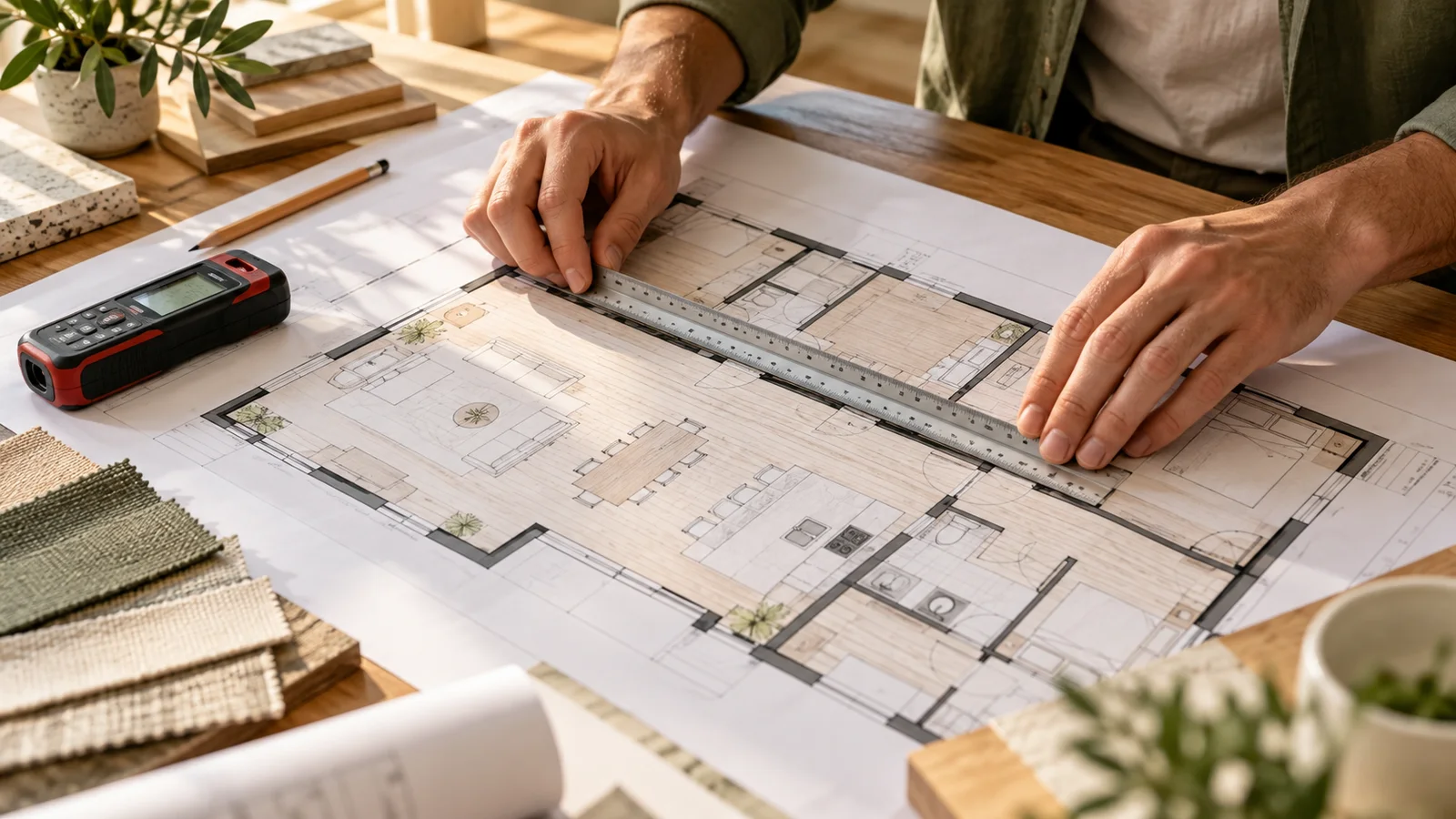
Why a plausible-looking plan can still have the wrong scale
A digital plan can look perfectly proportioned while being too large or too small. Pixels describe the image, not the room. The “1:100” printed on a drawing describes a particular reproduction size; it does not automatically remain meaningful after a screenshot is resized, placed inside a document or photographed. To relate the image to physical space, you need a trustworthy real-world length and the corresponding endpoints.
Calibration establishes that relationship. It does not repair a misplaced partition, identify hidden wall construction or prove that the source represents the latest condition. Separate these questions: first determine the size relationship, then inspect the geometry, then compare important dimensions with the property. This order prevents you from repeatedly adjusting furniture to compensate for an incorrectly scaled room.
1. Choose a reference with identifiable endpoints
A long, clearly dimensioned straight span is usually easier to use than a short symbol. A few pixels of endpoint uncertainty represent a smaller fraction of a long line. Choose a room width, a clear wall-to-wall length or another measured segment you can locate precisely. Avoid dimensions marked as a maximum when your selected line passes through a narrower part of an irregular room.
Read what the dimension actually measures. Inside finished faces, structural faces, outside faces and wall centre lines are different references. A dimension beside the exterior wall is not automatically the interior room length. Trace its extension lines back to their endpoints. If the drawing is unclear, measure the relevant span in the property or request a dimensioned drawing rather than guessing from furniture symbols.
Related documentation: SketchUp Help — Scaling Your Model
2. Convert units before entering a value
Use one working unit throughout the calculation. Four metres is 4,000 millimetres or 400 centimetres. A label written as 12 feet 6 inches represents 150 inches, which is 3,810 millimetres. It is not 12.6 feet. Decimal feet and feet-plus-inches are different notations, and confusing them can create a quiet error that remains hidden in an attractive 3D view.
Write the reference in a small record: “living room, inside finished face to inside finished face, 4,000 mm, from dimensioned plan.” This makes the calibration repeatable and tells a collaborator what was measured. Avoid rounding away information before conversion. Round display values only after you have established the correct relationship between the drawing and the intended physical length.
3. Understand the scale calculation
If an 800-pixel segment represents 4,000 mm, the image scale is 4,000 ÷ 800 = 5 mm per pixel. A different 600-pixel segment would therefore represent 3,000 mm if the image is uniformly scaled. This example explains the principle; you do not need to count pixels manually when a calibration tool lets you select endpoints and enter the known length.
If a model currently measures 3,840 mm along a span that should be 4,000 mm, the correction factor is 4,000 ÷ 3,840, approximately 1.04167. Uniformly applying that factor increases horizontal lengths by about 4.17%. After calibration, check how the application handles heights, opening properties and furniture sizes. Do not assume every parameter is rescaled in the same way as the traced floor geometry.
| Quantity | Calculation | Result |
|---|---|---|
| Reference scale | 4,000 mm ÷ 800 px | 5 mm/px |
| Second segment | 600 px × 5 mm/px | 3,000 mm |
| Correction factor | 4,000 ÷ 3,840 | 1.04167 |
| Area after a 4% length increase | 1.04 × 1.04 | 8.16% larger |
4. Validate using independent measurements
A second measurement should test the first calibration, not repeat it. Choose another room or a span running in the perpendicular direction. Compare the expected length with the result and record the difference. If a 3,000 mm span appears as 2,890 mm after calibration, the shortfall is 110 mm, or about 3.67% of the expected value. That is a reason to investigate the source and selected endpoints.
Look for patterns. Similar proportional errors across the plan suggest scale or unit problems. One incorrect room may indicate a misplaced partition. A good horizontal match with a poor vertical match suggests unequal image resizing or perspective distortion. No single percentage is a universal acceptance threshold: an exploratory furniture sketch and a custom cabinet installation need different levels of certainty and verification.
5. Recognise what one scale factor cannot fix
A uniformly resized scan can be calibrated with one reliable length. A sheet photographed at an angle may not have one consistent scale: distances near the camera can occupy more pixels than equally long distances farther away. A screenshot stretched to fit a page can also have different horizontal and vertical scale factors. Entering a new reference repeatedly will not resolve those underlying distortions.
Return to the source where possible. Obtain a direct image export, scan the sheet flat or correct the photographed page perspective before tracing. Recheck the resulting image against at least two dimensions. Cropping blank margins is different from stretching the plan; cropping changes the frame, while unequal resizing changes the relationship between the room widths and lengths.
6. Treat area and endpoint uncertainty carefully
Area changes with the square of a uniform length factor. Increasing lengths by 4% increases the corresponding areas by 1.04 × 1.04 = 1.0816, or 8.16%. This is why a modest-looking scale adjustment can move the reported floor area noticeably. A listing area is therefore a useful question to investigate, but a poor substitute for a clearly defined reference length.
Area definitions can also differ: a total may include walls, balconies or shared space that your room polygons exclude. Do not distort the plan just to force those totals to match. Consider image uncertainty too. At 5 mm per pixel, selecting each endpoint up to 5 pixels away from its intended position can create a worst-case length discrepancy of 50 mm. Zooming helps selection, but it cannot restore missing detail.
7. Save a calibration record before planning details
Keep the original file, reference endpoints, entered value, units and independent check results together. Name the drawing version and note whether the reference came from the drawing or a site measurement. If you later replace the image with a higher-resolution export, repeat the checks; identical-looking files can have different pixel dimensions or framing.
Once the scale is established, measure the locations that drive your decision: an alcove for a desk, a wall for a wardrobe, or the narrowest part of a route. Confirm those critical dimensions directly before committing to made-to-fit items. A good calibration record makes the model useful for discussion while keeping the distinction between measured facts and provisional geometry visible.
Common questions
Can I use the area in a property listing to set scale?
Area can reveal a mismatch, but totals may include different boundaries or spaces. Prefer a clearly defined length. Do not stretch a plan to match an area without understanding what each number includes.
Why is one direction correct and the other wrong?
Check for unequal resizing, a perspective photograph or incorrectly selected endpoints. A uniform scale change cannot independently correct the horizontal and vertical directions.
Does zooming into the image improve accuracy?
It can make endpoint selection easier, but it does not add missing detail. Use a clearer source and independent measurements when the drawing is ambiguous.
Put your next idea into your floor plan.
Start with your drawing, or explore the sample to try editing and a 3D walkthrough.
Convert your floor plan →